

You know the feeling, right? You dump your photos from your iPhone to your Windows PC, anticipating a look through your vacation snaps, and instead, you're greeted by a digital graveyard of blank icons. The files won't open. The default viewer throws an error. Even Photoshop gives you the cold shoulder.
It is incredibly annoying.
The culprit is the HEIC (High Efficiency Image Coding) format. Apple switched to this standard a few years ago, and since then, users have been split into two camps: the Mac users (where "it just works") and everyone else (who suffer every time they try to move a photo to a PC).
I've been there a million times. You need to urgently send a document scan or a product photo, and the recipient writes back: "I can't open this."
The first instinct is to go into your iPhone settings and kill that cursed HEIC forever. But don't be so hasty. Let me explain why HEIC is actually awesome, and how to solve the compatibility headache without losing your mind.
Solution #1: On-the-Fly Conversion (My Top Pick)
Let's be honest: HEIC is technically superior to JPG. It takes up less space while maintaining the same quality (more on that later). So, disabling it globally basically means voluntarily cluttering your phone's storage.
When I need to transfer photos to a computer or send a "universally readable" file to someone, I just use a converter. But not just any random tool.
I've tested dozens of services. Most of them are a privacy nightmare. You upload your personal photos to some random server, they process them there, and then you download them back. Who else is looking at those photos? Nobody knows.
My recommendation is heictojpg.website.
Why this one?
- It's Private. This is the killer feature. The conversion happens locally in your browser. The files never leave your device. You can literally turn off your Wi-Fi, load the page, and it will still work. I'm a bit of a stickler for security, so this is huge for me.
- It's Free. No watermarks, no "5 photos per day" limits, and no hidden subscriptions.
- It's Fast. You don't have to wait for files to upload to a server and download back. It happens instantly, powered by your own processor.
How it works: You simply drag and drop your files into the window, and a second later, you grab your ready-made JPGs.
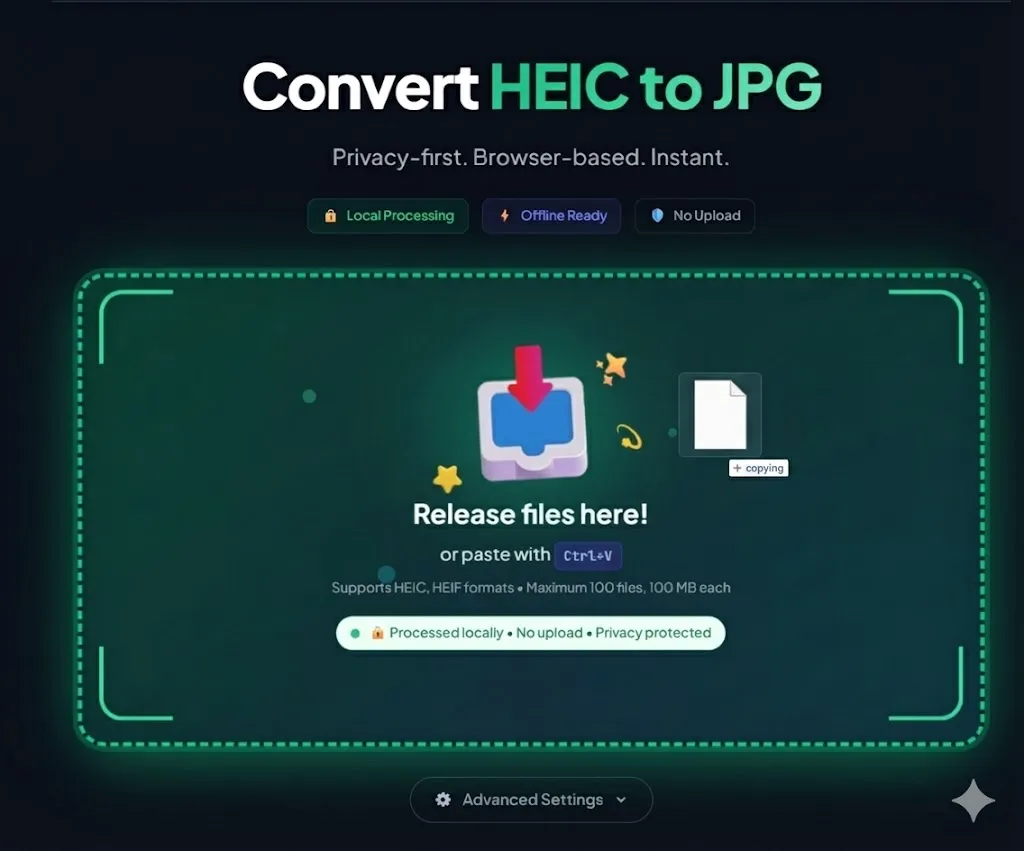
This is the perfect workflow for the "I need to dump a few pics to Windows" scenario. You keep the benefits of HEIC on your phone but get the compatibility of JPG on your computer.
HEIC vs. JPG: The Battle of Quality and Size
Why did Apple force this format on us? Was it greed? Not really. It's all about efficiency.
If you look at HEIC vs JPG quality, upon close inspection, HEIC often wins. It supports 16-bit color depth (compared to JPG's 8-bit), which is critical for photos of the sky or subtle gradients.
But the main factor is HEIC file size.
- JPG: A standard shot weighs in at about 5–6 MB.
- HEIC: The same shot with the same (or better) quality weighs 2.5–3 MB.
The difference is massive. If you have a 64GB or 128GB iPhone, turning off HEIC means you run out of space twice as fast. I tested this on my own archive: 1,000 photos in HEIC took up 1.8 GB. After converting them to JPG, they ballooned to 4.5 GB.
Solution #2: System Settings (The Hard Way)
If you strictly refuse to use converters, there are other paths. But each comes with a significant catch.
1. Buying Codecs for Windows
Windows can open HEIC files, but... Microsoft wants money for it. You have to go to the Microsoft Store and buy the "HEVC Video Extensions." It costs peanuts (about a dollar), but the mere principle of having to pay for a basic function like viewing photos is incredibly irritating. Plus, the extension has been known to get glitchy after system updates.
2. Changing iPhone Camera Settings
You can force your iPhone to shoot in JPG by default.
- Go to Settings → Camera.
- Select Formats.
- Check Most Compatible.
Why I don't advise this: As I mentioned earlier, you immediately lose 50% of your free space on your smartphone. Plus, you lose out on certain photo editing features that rely on HEIC's color depth. It's a step backward technologically just to appease Windows.
The Verdict
Don't fight progress. HEIC is a fantastic format that saves gigabytes of memory on your device.
My algorithm is simple:
- Leave your iPhone camera settings alone ("High Efficiency" mode).
- Enjoy the extra free space.
- If you need to move photos to a PC or send them to a friend on Android, take 10 seconds and run the files through heictojpg.website.
It's free, it's safe, and it saves your sanity.