

Sound familiar? You dump a batch of photos from your iPhone onto your desktop to whip up a report or list an item for sale, and Windows greets you with nothing but blank white icons. Or worse—you try to upload files to a website, and it spits out an error: "Invalid Format."
It drives you up the wall.
I've been there myself more times than I can count. Apple loves HEIC because it saves storage space on your phone (which is genuinely great), but the rest of the internet is still living in a JPG world. Corporate portals, website CMS platforms, and even some photo editors still have no idea what to do with Apple's files. You just need to send a photo to an agent or upload it to a site that doesn't accept HEIC?
Don't waste time looking for complicated workarounds. Here is how to handle a file HEIC to JPG conversion in just a couple of clicks, even if you have hundreds of shots.
Solution #1: Batch Converter (Fast & Free)
Honestly, I've tried a ton of software. Most programs are either paid, slap a huge watermark on your images, or force you to upload files one by one. If you need to bulk convert iPhone photos, that approach is absolute torture.
For mass processing, I recommend using our tool: heictojpg.website.
What's the catch? There isn't one. Our tool digests 100 files at once and spits out a ready-to-go ZIP archive. It saves a massive amount of time when you are down to the wire on a deadline.
Why this is my top pick:
- It's Private. Unlike many online services, the magic happens locally inside your browser. Your files never fly off to some remote server. For me, this is critical—I don't want personal photos or scanned documents floating around the web.
- It Works Offline. Load the page once, and you can convert files even if you're on a plane with no Wi-Fi.
- It's Free. No hidden fees or subscriptions.
How it works:
Step 1: Go to the website.
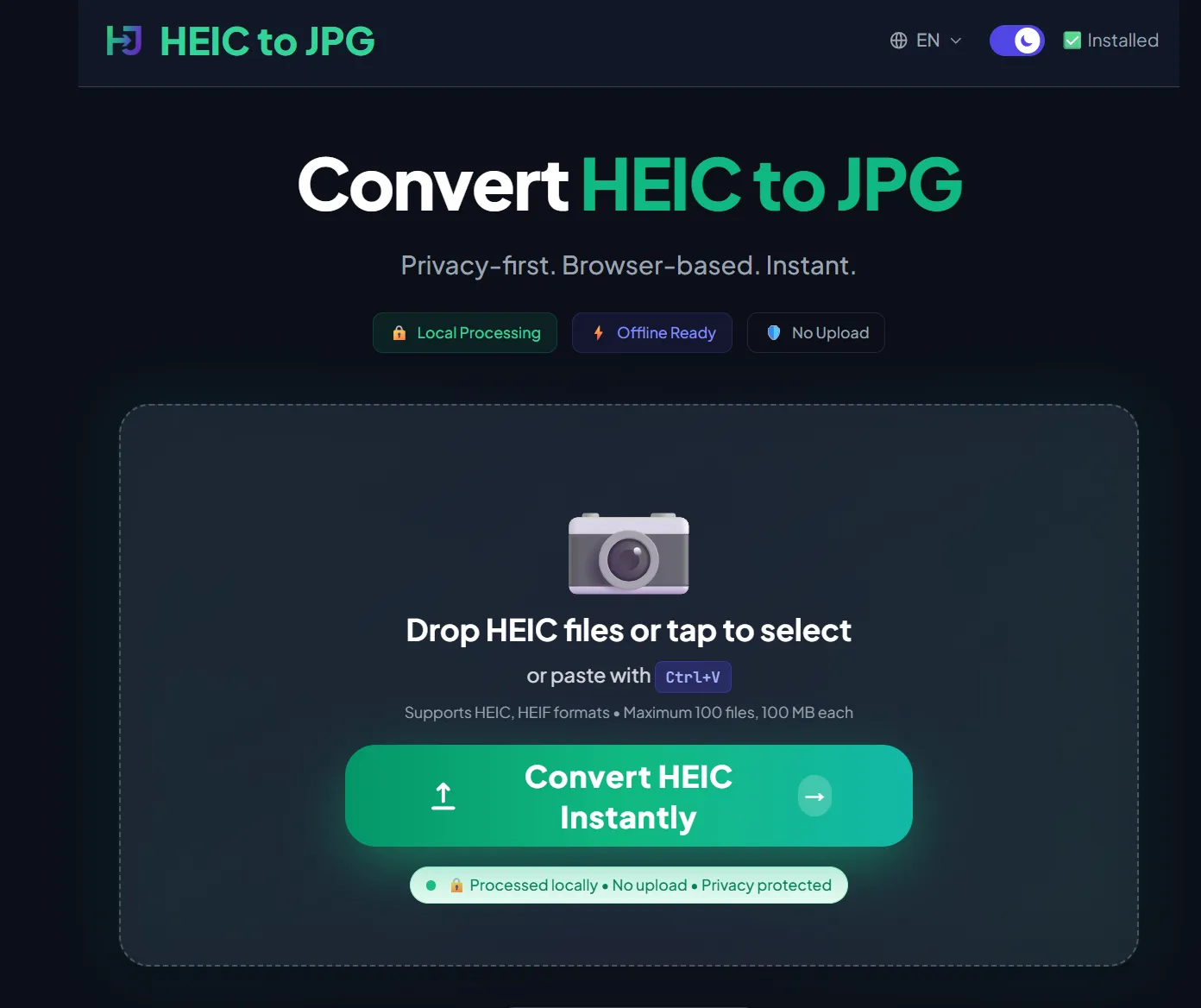
Step 2: Drag and drop your entire folder of photos.
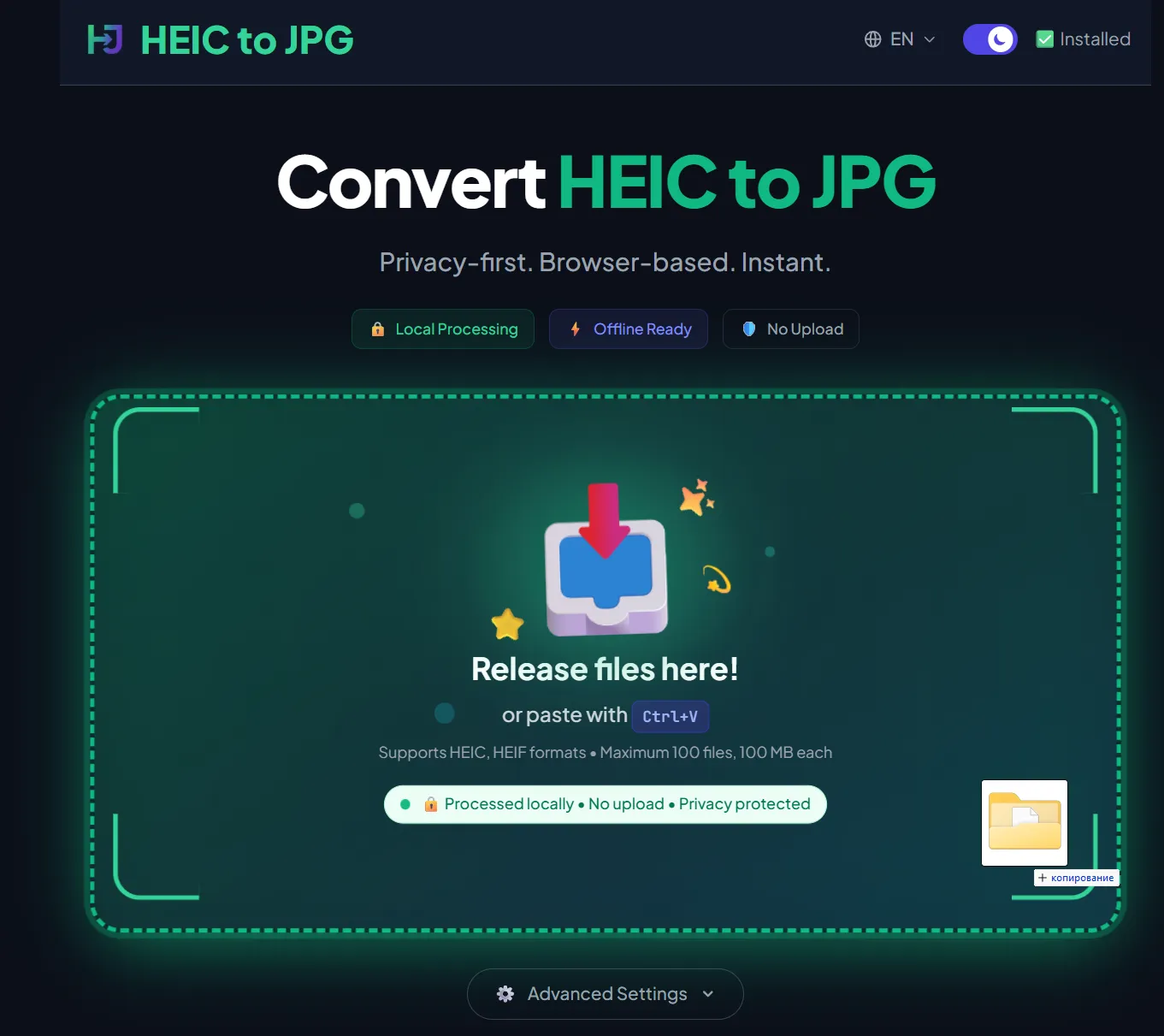
The conversion starts automatically:

Step 3: Hit the button and download your archive.
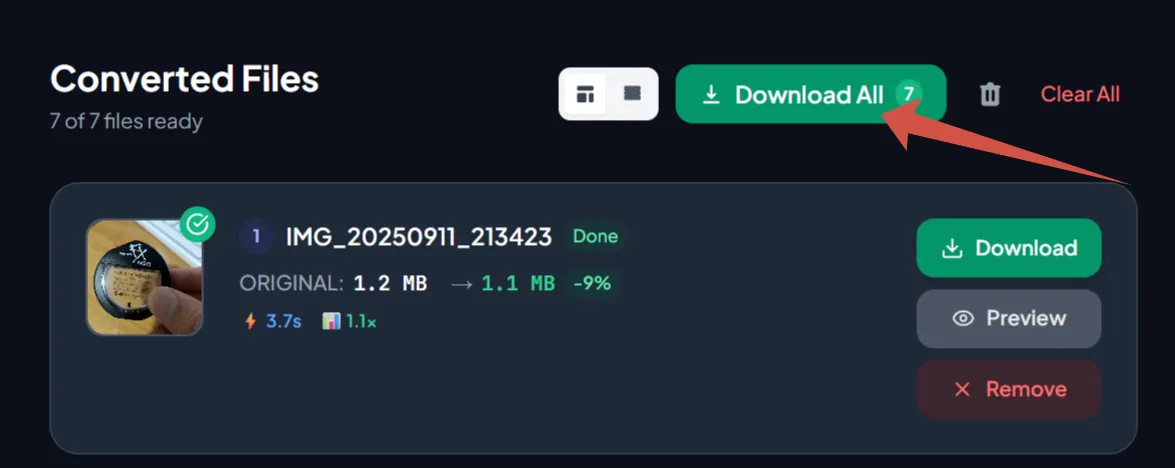
If your goal is to simply change HEIC to JPG and get on with your day, I haven't found a better option yet.
Solution #2: System Settings (If You Like Doing Things the Hard Way)
Sure, there are other ways. But consider yourself warned: they are either slow or they cost money.
The Windows Method
If you try to open a HEIC file in the standard Windows viewer, the system will politely suggest you download an extension from the Microsoft Store. Surprise, surprise—it often costs money (around $0.99). Paying a dollar just to look at your own photo? Hard pass.
The iPhone Method
You can force your phone to shoot in JPG by default.
- Go to Settings → Camera → Formats.
- Select "Most Compatible".
But here's the catch: this only works for new photos. Those 150 shots you already took for your report? They stay in HEIC. Plus, JPG takes up more storage, so your phone memory will fill up faster. This is more of a preventive measure than a fix for your current headache.
The Bottom Line
Don't overcomplicate your life. If you're staring at a folder of "unreadable" files and have an angry boss (or client) demanding images "right now":
- Don't buy extra codecs.
- Use a batch HEIC converter like heictojpg.website.
- Get your JPGs and send that report.
At the end of the day, technology should help us work faster, not force us to spend 30 minutes Googling instructions.