

We've all been there. You download a massive 5-year photo archive via Google Takeout, or maybe just grab a folder from Google Drive, ready for an evening of nostalgia. You unzip the file on your Windows PC, expecting to see memories. Instead, you get... nothing.
Well, the files are there. But instead of thumbnails showing your friends' faces, you see generic, blank icons. You try to open one, and the standard viewer throws an error or suggests you buy a codec.
Welcome to the HEIC club.
It's a format Apple and Google use to save space on their servers and your phone storage. Convenient for them. For us regular folks who just want to browse vacation snaps on a computer? It's a massive headache. Windows (seriously, even in 2025?) still doesn't always play nice with this format "out of the box."
I've dealt with this myself plenty of times. I'd download a backup, only to find it had turned into digital pumpkins—completely unusable. But I found a solution to quickly convert Google Photos HEIC to good old JPG, a format that opens on pretty much anything—even a toaster.
Solution #1: Fast and Free (My Personal Pick)
When I was trying to rescue my 10GB of photos, I tested a ton of software. Most of it was either paid or required uploading my personal photos to some sketchy servers where they might stay forever. No, thank you.
That's why I recommend heictojpg.website.
It's a brilliantly simple tool. The killer feature is that it works right in your browser. Your photos are never uploaded anywhere. The entire conversion process happens locally using your own processor power. It's private and secure.
How it works:
- Go to the website.
- Open the folder with your downloaded files (even if it's hundreds of photos from Google Takeout).
- Just drag and drop them into the browser window.
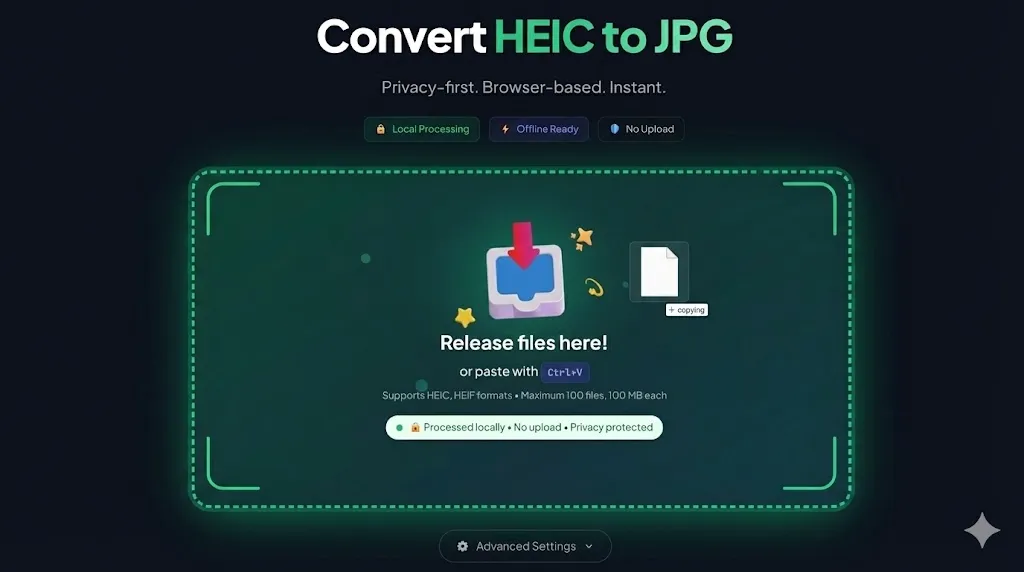
Why this is the best option:
- Privacy: I'm a bit paranoid about data, and I love that photos of my kids aren't flying off to a cloud owned by some unknown developer.
- Free: No watermarks and no begging you to pay for a "Pro Version" after the 5th photo.
- Offline: If your internet connection drops, the converter keeps working because the script is already loaded.
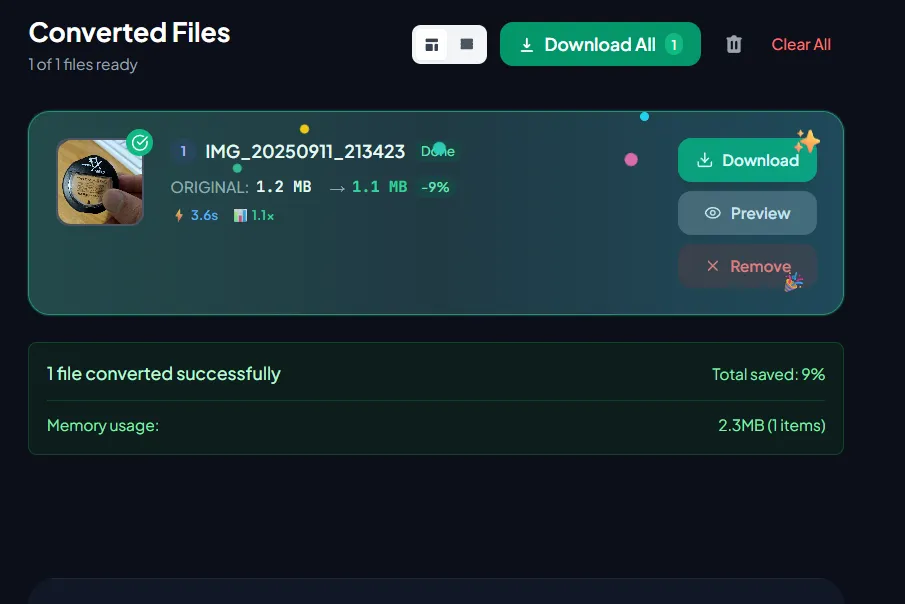
This is the ideal answer to the Google Drive HEIC to JPG query. Download, drag, drop, get JPGs. Done.
Solution #2: The System Method (Slow and Sometimes Costs Money)
If you fundamentally refuse to use browser-based solutions, there is the "official" way. But be warned: it involves jumping through more hoops.
The Windows Way
Microsoft, in its infinite wisdom, didn't include HEIC support by default in the base version of Windows 10/11 (in some builds). When you try to open a photo, the system sends you to the Microsoft Store to get HEIF Image Extensions.
The Catch: Microsoft often asks for money for this (around $0.99). Yes, a dollar just to open your own photo.
Even after installing the codec, older software (like older versions of Photoshop or basic viewers) might still fail to see the files.
iPhone Settings (For the Future)
To save yourself the hassle next time, you can stop your iPhone from shooting in HEIC altogether.
- Go to Settings → Camera → Formats.
- Select Most Compatible.
Now, new photos will be saved as JPGs. However, there is one "but": this won't fix the thousands of shots already sitting in your Google Photos cloud in HEIC format. For those, you'll have to go back to Solution #1.
The Bottom Line
Don't overcomplicate things. If you downloaded an archive and see a pile of .heic files, you don't need to hunt for a pirated version of Photoshop or buy codecs.
Just open heictojpg.website, toss in the whole batch, and pick up your ready-to-use JPGs a few minutes later. Technology should work for us, not annoy us with incompatibility.