

Does it drive you up the wall when you transfer photos from your iPhone to your PC, and instead of pictures, you just see those useless white file icons? You try to open them, and Windows—with a straight face—asks you to pay a dollar for a codec. Seriously? In 2025?
I've been there a hundred times. You shoot on an iPhone, everything looks great, HEIC is saving you tons of space... but then you need to urgently send a passport scan or a photo of the kids to your grandma who's rocking a ten-year-old laptop. And just like that, you hit a wall. The file won't read.
The first thought any normal person has is to open Google and type "convert HEIC to JPG." A dozen sites pop up. You happily upload your passport photo, wait a minute, and download the result.
Stop right there. You just sent your personal data to a complete stranger's server.
Where is that server? Who is the admin? Are they keeping copies? Nobody knows. Most popular services (even the big ones like CloudConvert) require you to upload the file to the cloud. For cat memes, that's fine. For personal photos or sensitive documents? That is Russian roulette.
But there is a solution. And it's actually simpler than you think.
Solution #1: Browser-Based Conversion (The Safe Bet)
I've tested a ton of tools and eventually settled on heictojpg.website.
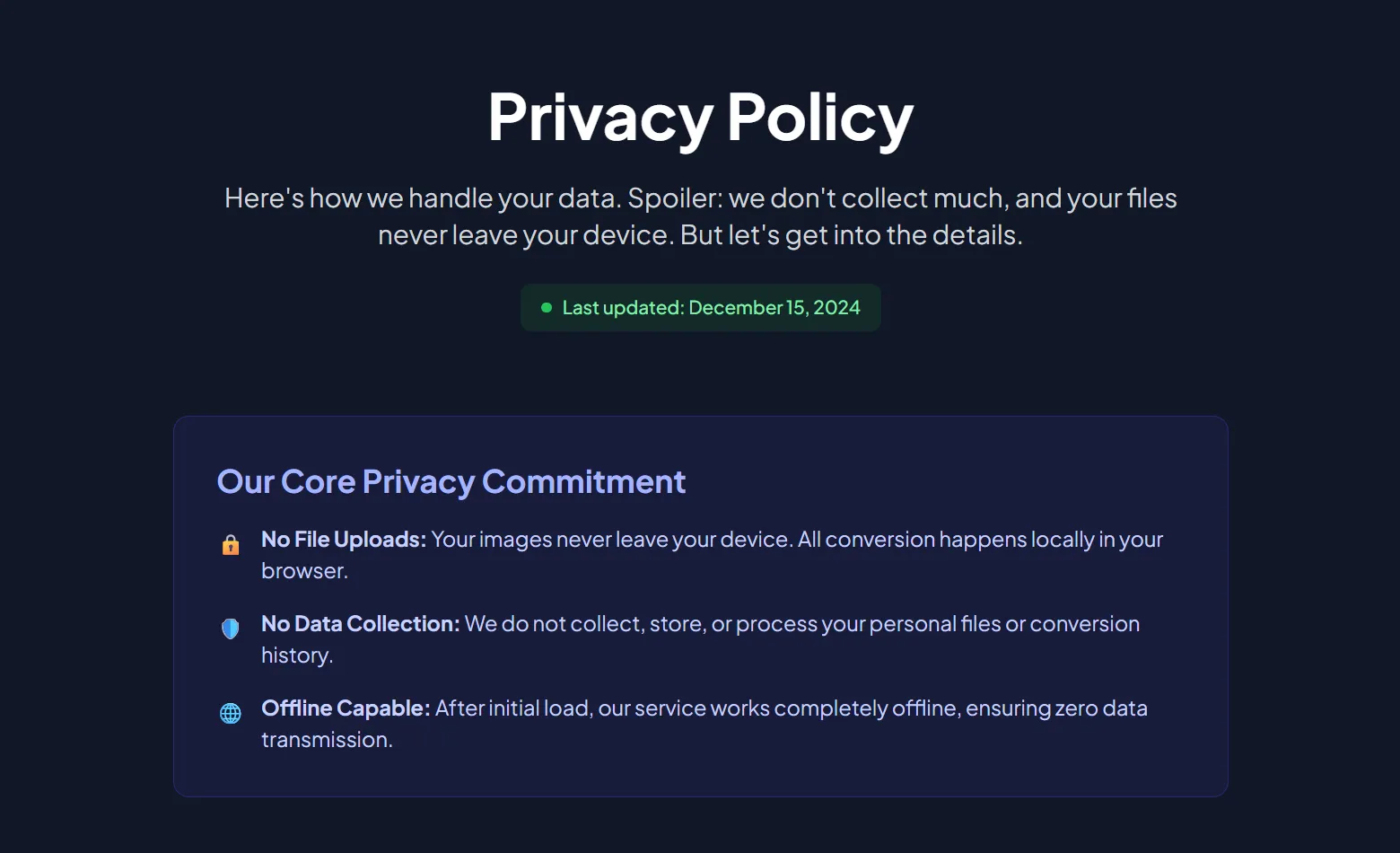
Why this one? Because it is a secure HEIC converter. Unlike the competition, this site operates on a different principle. It doesn't send your files to a server. At all. All the magic happens right inside your browser, using your own computer's processing power.
Technically, it's called "client-side conversion," but simply put: your photos never physically leave your computer.
How do you know I'm not lying?
I'm a bit paranoid about security, so I tested this personally. You can too:
- Go to the website.
- Kill your internet connection (unplug the cable or turn off Wi-Fi).
- Drag your files into the converter window.
- Watch them convert.
If the site wanted to steal your photos, it would throw an error without an internet connection. But heictojpg.website works as a fully offline HEIC to JPG tool. That is your guarantee of 100% privacy.
The Pros:
- Private: Perfect for documents, photos of your kids, and personal archives.
- Free: No hidden fees, subscriptions, or watermarks.
- Fast: You don't have to wait for the file to upload to a server and download back. It just flies.
Solution #2: System Workarounds (If You Like Jumping Through Hoops)
Of course, you can go the official route. But consider yourself warned: it takes time and it can be a headache.
Option A: Buy the Codec
Microsoft sells "HEVC Video Extensions" in their Store.
The Issue: It costs money (it's cheap, but paying for basic functionality feels wrong).
The Pain: Sometimes it just stops working after a Windows update, and you have to mess around reinstalling drivers. I've gone down this road—it's not exactly fun.
Option B: iPhone Settings
You can force your phone to shoot directly in JPG.
- Go to Settings → Camera → Formats.
- Select "Most Compatible".
Why this isn't a silver bullet: This only saves future photos. Those three thousand shots already sitting in your gallery in HEIC format? They remain unreadable on your PC. Plus, JPG takes up almost twice as much space. My phone storage fills up instantly, so I switched my settings back pretty quickly.
The Bottom Line
Technology should simplify our lives, not force us to choose between convenience and privacy.
If you just need to convert a couple of wallpapers from the internet—use whatever you want. But if we are talking about your data—passports, contracts, family photos—don't risk uploading them to random clouds.
Use local conversion. It's safe, free, and works even if you're on a plane.
Want to check the security for yourself right now? Go to heictojpg.website, turn off your Wi-Fi, and try converting a file. You'll be surprised how fast it is.